Since the project requires a lot of setup and support files, the easiest way to create a project is to copy another project as a template. The project we are going to copy is the OpModeRobot project. It would be nice if there were a nice VS Code wizard to create the project, but in lieu of that, I have created a small Java program called CreateRobotProjectVSCode which we can use to make a workable copy of the OpModeRobot project and then we can load that new project into VSCode.
To run this program, open the Windows File Explorer, find the VSCode folder inside RobotTools2027 / VSCode , and then double click on the CreateRobotProjectVSCode.cmd
file. This should display the following dialog box.
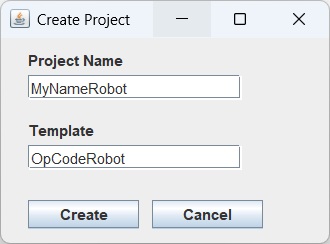
In the Project Name field, enter the name of your new project using your name (e.g. MyNameRobot) and leave the Template field set to OpCodeRobot. Don’t put spaces or other punctuation in your project name; you’ll regret it later. Then click the Create button. If all goes well, it should create a project with the name you gave.
Once the project has been created, go back to Visual Studio and choose the File / Open Folder command:

And select the folder that you just created (e.g. MyNameRobot):
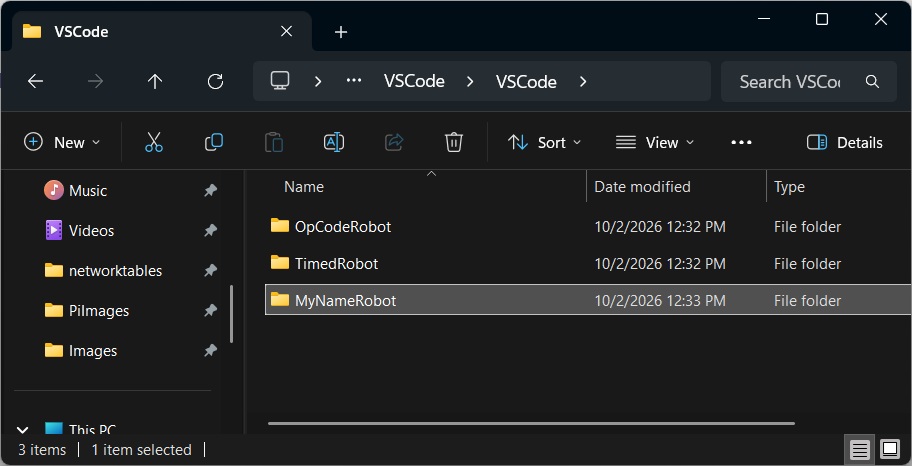
Click the Select Folder button and it should load your project:
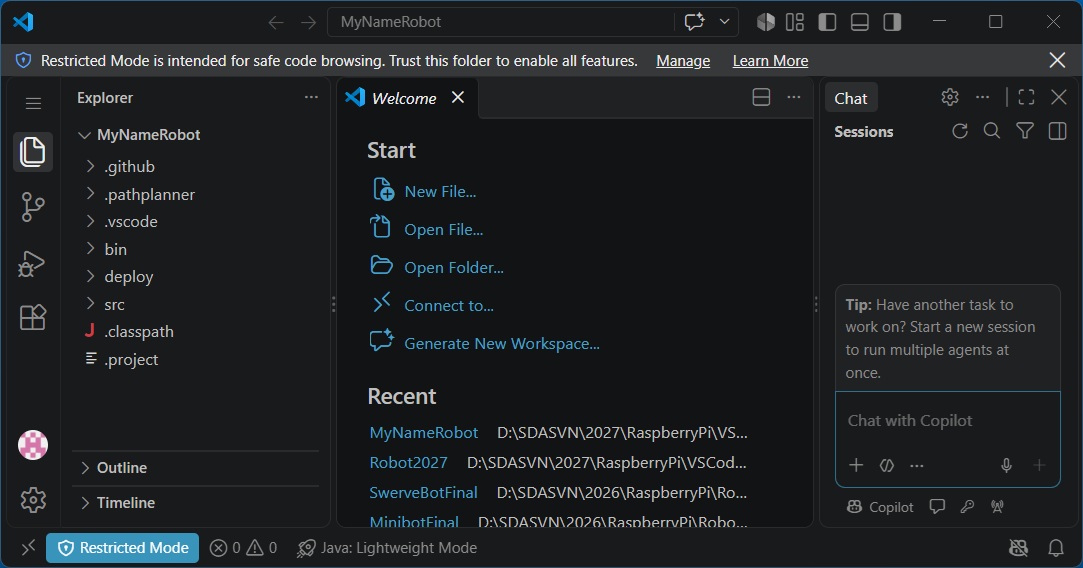
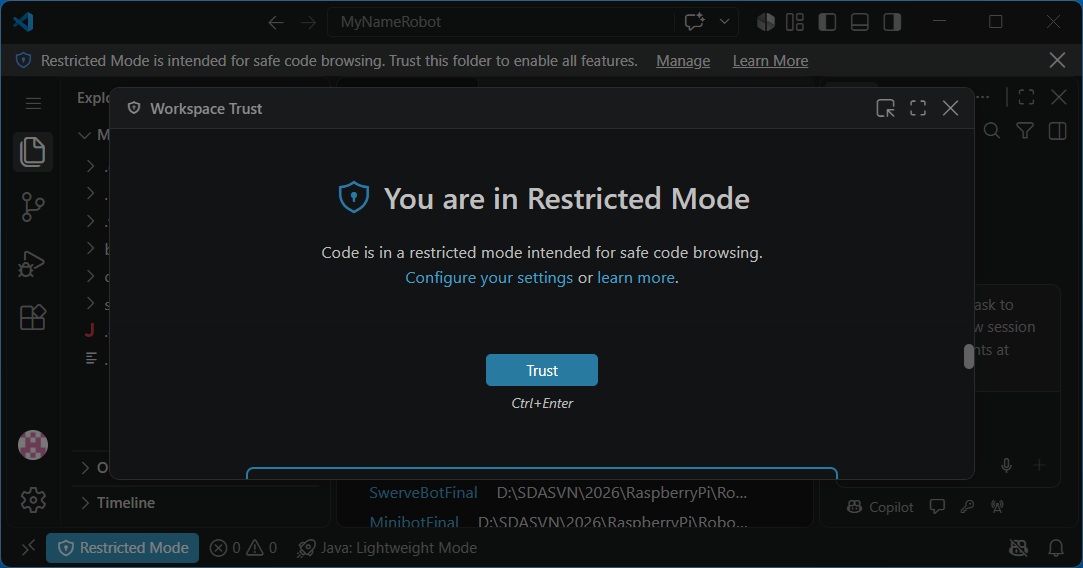
Close the “Get Started” and “Chat” right panes. If you are seeing the “Restricted Mode” button in the lower left, click on that and then scroll down until you see the “Trust” button and click on that. Then close the “Workspace Trust” window.
Then expand the src tree in the left pane to see a listing of the source files for your program. Click on Robot.java in this pane to display this source file in the right pane:
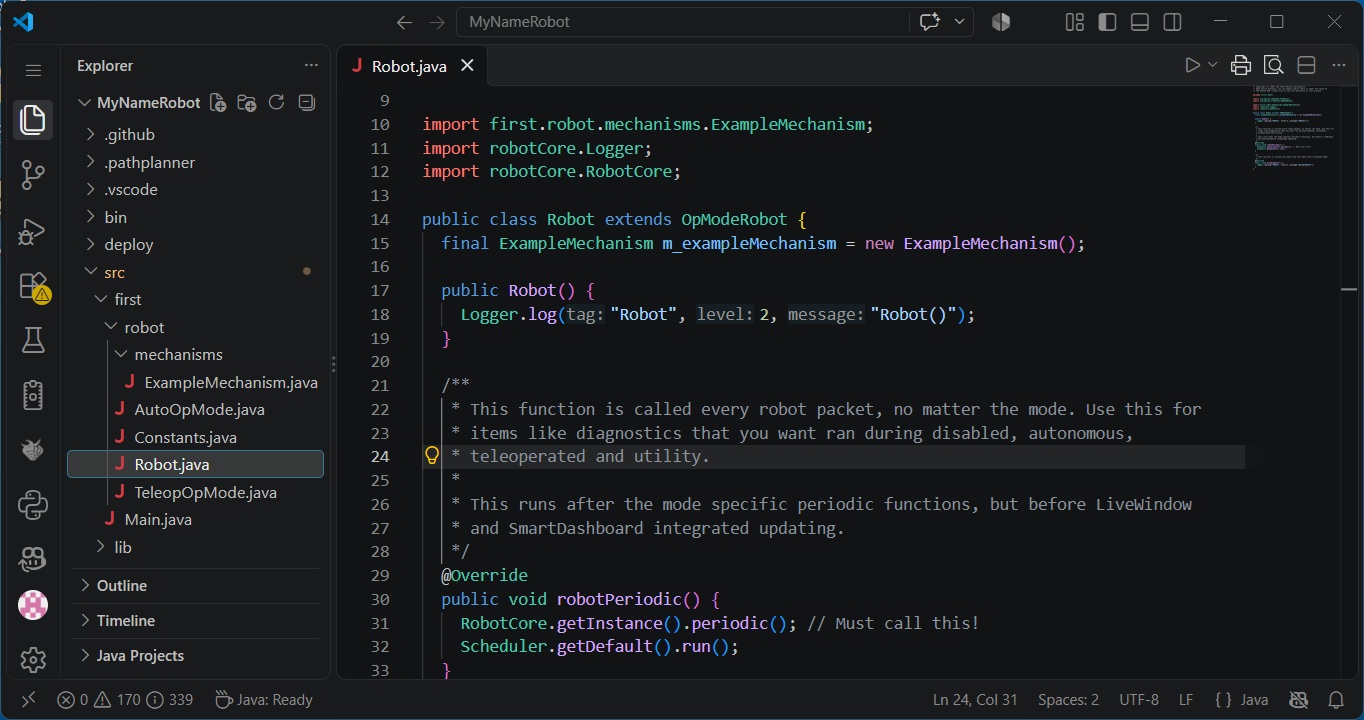
Your program consists of a Robot class which inherits from the built in OpModeRobot class. Let’s take a look and try and understand the structure of this class:
// Copyright (c) FIRST and other WPILib contributors.
// Open Source Software; you can modify and/or share it under the terms of
// the WPILib BSD license file in the root directory of this project.

package first.robot;

import org.wpilib.command3.Scheduler;
import org.wpilib.framework.OpModeRobot;

import first.robot.mechanisms.ExampleMechanism;
import robotCore.Logger;
import robotCore.RobotCore;

public class Robot extends OpModeRobot {
  final ExampleMechanism m_exampleMechanism = new ExampleMechanism();

  public Robot() {
    Logger.log("Robot", 2, "Robot()");
  }

  /**
    * This function is called every robot packet, no matter the mode. Use this for
    * items like diagnostics that you want ran during disabled, autonomous,
    * teleoperated and utility.
    *
    * This runs after the mode specific periodic functions, but before LiveWindow
    * and SmartDashboard integrated updating.
    */
  @Override
  public void robotPeriodic() {
    RobotCore.getInstance().periodic();	// Must call this!
    Scheduler.getDefault().run();
  }

  /**
   * This function is called once each time the robot enters Disabled mode.
   */
  @Override
  public void disabledInit() {
    Logger.log("Robot", 1, "DisabledInit");
  }
}
The first thing we see is the declaration of the variable m_exampleMechanism:
final ExampleMechanism m_exampleMechanism = new ExampleMechanism();This creates an instance of the class ExampleMechanism which will be discussed later. Most of the resources your program is going to need will be declared here.
Next, you see the constructor:
  public Robot() {
    Logger.log("Robot", 2, "Robot()");
  }
If you need to do some initialization at the beginning of your program, here is the place to do it. The only thing that we are doing is logging that this function is called. You will find that logging the progress of your program will prove very useful.
Next there is the robotPeriodic() function:
  @Override
  public void robotPeriodic() {
    RobotCore.getInstance().periodic();	// Must call this!
    Scheduler.getDefault().run();
  }
This function is called every 20 milliseconds while your program is running. It’s principle purpose is to run the needed schedulers. but would be the place to put any code that you needed to run regardless of the mode or whether the robot is enabled or disabled. Generally you would only use it to display information using the Elastic display.
Finally there is the disabledInit() function which is called once each time the robot is disabled. This is where you would place code you needed to be executed each time the robot is disabled.
  @Override
  public void disabledInit() {
    Logger.log("Robot", 1, "DisabledInit");
  }
The comments in the code are pretty self explanatory. Each of the modes has a function (e.g. autonomousInit) which is called when that mode starts. Then, as long as the robot stays in that particular mode, that mode’s ‘periodic’ function (e.g. autonomousPeriodic) will be repeatedly called.
Before we move on, I would like to bring your attention the the numerous calls to Logger.log(…). This is a debugging function which allows you to add logging to your program. This can be most useful when trying to figure out why your program is not behaving the way you expect. The log function takes 3 parameters. The first is a tag which identifies this particular log and is usually the class name.
The second is a priority which determines when the log will be displayed. The higher the number, the more likely that this line will be displayed. You can change the logging level by calling setLogLevel.
The third parameter is whatever you wish to log. I strongly suggest that you make use of this feature when writing your code. It can make finding an elusive problem much easier later, especially when the problem only manifests itself when running the robot in competition.