The first thing you need to do is to connect your computer to the your robot (be sure that you have connected the battery). Each robot is configured as a WiFi hotspot with a specific name which is stamped on your robot (eg. Robot01). Now connect your computer’s WiFi to that hotspot.
NOTE that it may take up to 20 seconds for the robot’s WiFi to show up after you plug it in!.
Do not worry if it says your WiFi has no internet.
You will be creating your program on your laptop, but you need to run your program on the Raspberry Pi on the robot. In order for any of this to work, we must have a program running on the Raspberry Pi which listens on port 8999. Your PC will then connect to this port and transfer your program to the Pi for execution. We will use a utility called PuTTY to start this program on the Pi.
If you are using one of our laptops, we have configured PuTTY for you. However if you are using your own computer, you will need to configure it yourself. Instructions can be found here.
Now, start the Driver Station by double clicking PiDriverStation in the Utils folder. In there you will see PiDriverStation.jar. Double click it. You should see this window:
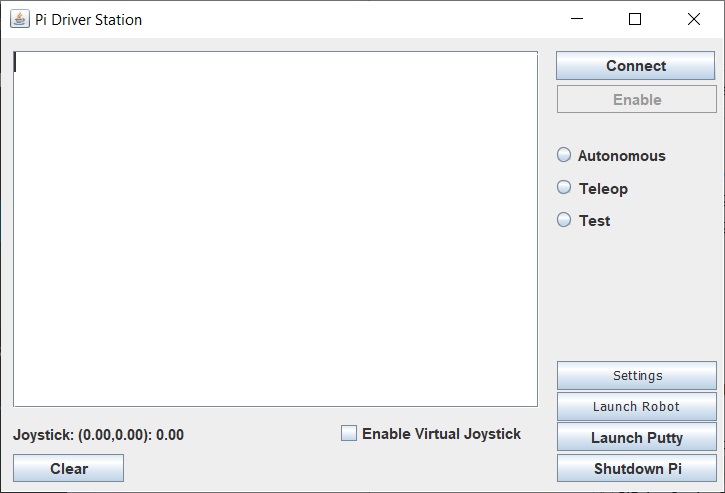
Now we must configure the driver station by clicking the Settings button and set the fields as follows:
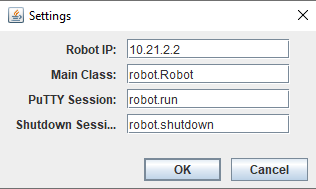
Now with your computer connected to the robot, click on the Launch Putty button on the Driver Station. If everything is working the following console window should open:
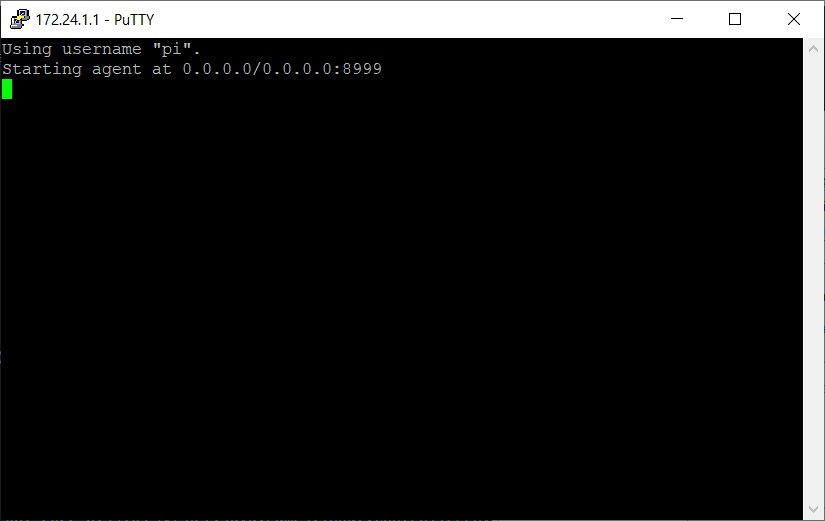
If you don’t see this window, or the two lines you see aren’t being displayed, then something is wrong.
We can now run our program by choosing the Run / Start Debugging option from the menu or pressing F5. When you run your program, you should see something like this. It may take a fair bit of time the first time you run your program as it will need to download all of your code. Subsequent runs should be faster as it only need to download changes.
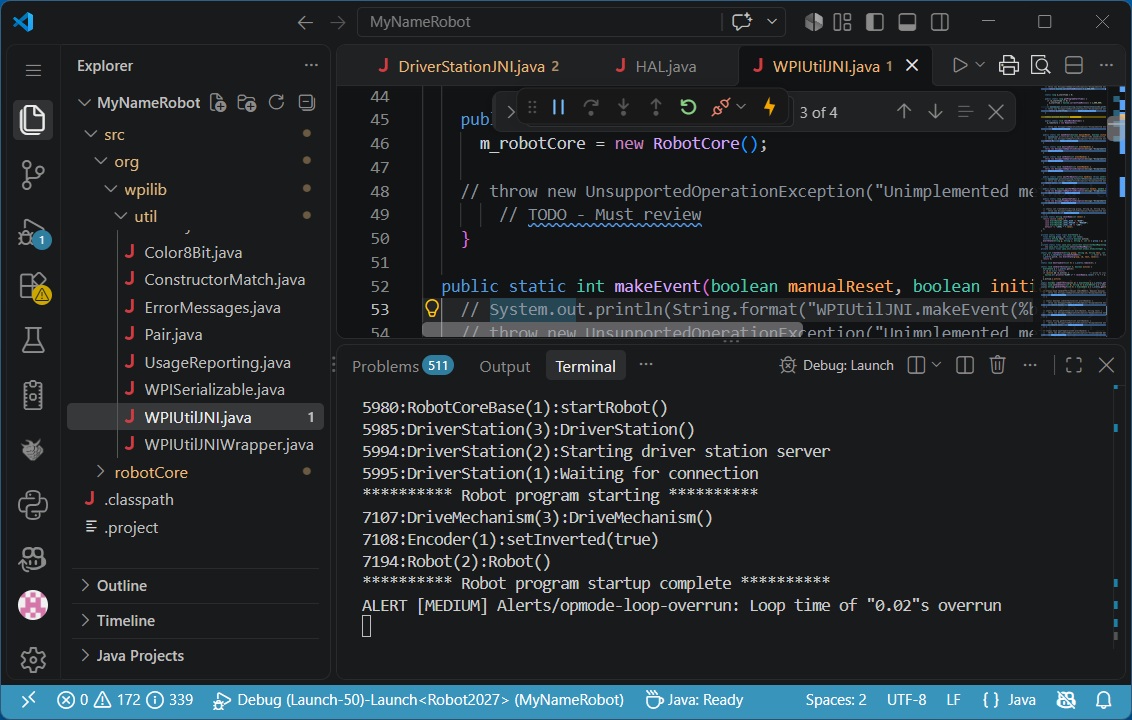
The output you see in the TERMINAL window at the bottom comes from the Logger statements we discussed earlier. You can add your own logging commands to output to this window when your program is running.
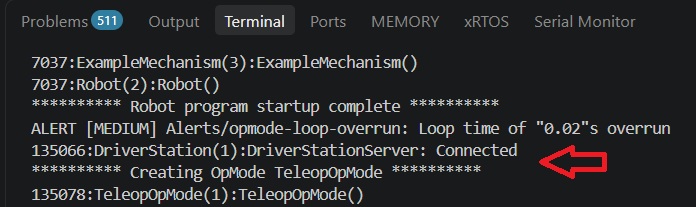
Now that the program is running, on the Driver Station connect to the robot by clicking the Connect button. Two things will happen. First, the Connect button will change names and say Disconnect. Second, the Terminal window will show a couple of new lines which will tell you that the Driver Station is connected. It will also show that an instance of the TeleopOpMode class has been created. We will talk about the purpose of this class later.
At this point your robot is disabled. To enable the robot, click the Enable button.
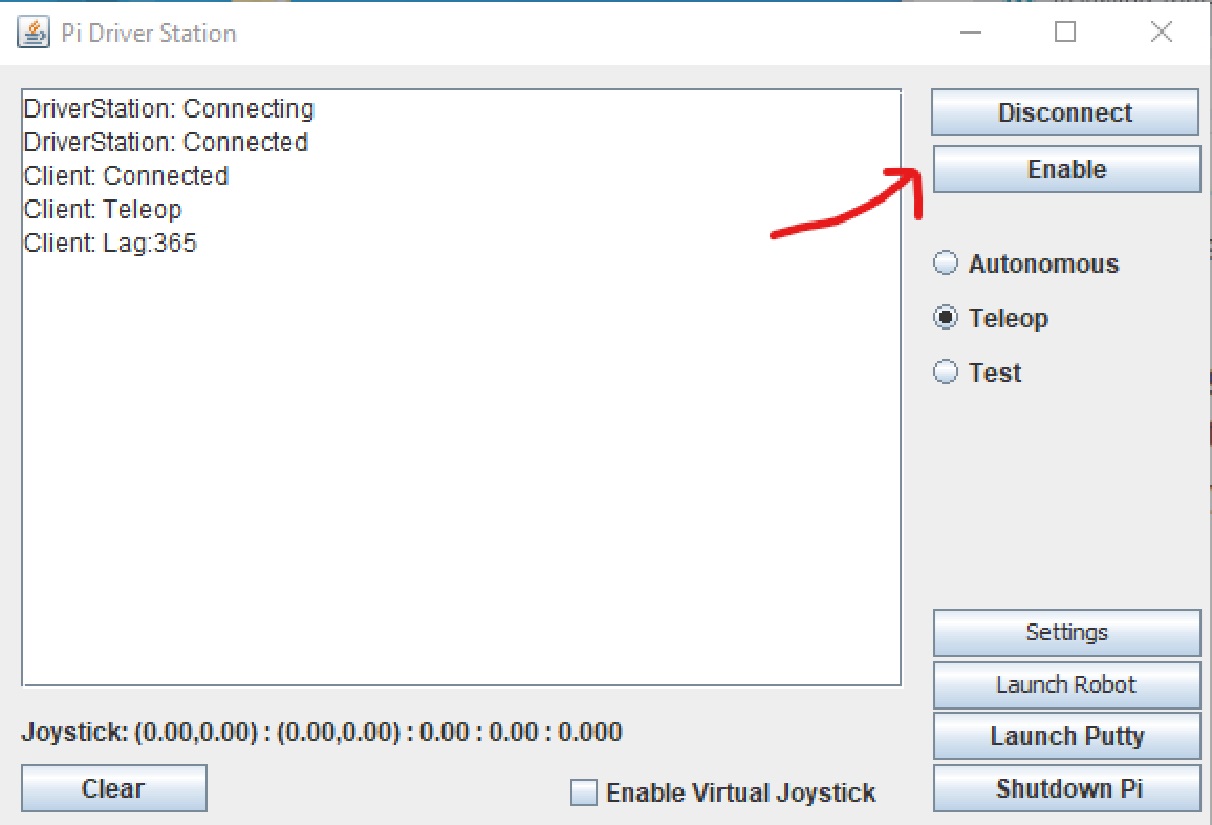
After hitting Enable, this button changes to Disable. The Terminal window shows:
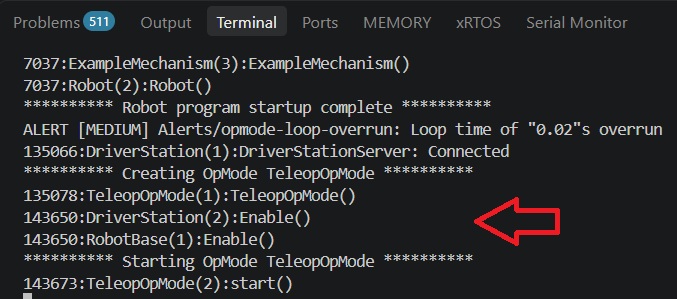
Here we can see the logging indicates that the robot has connected to the Driver Station, was Enabled. We also see the call to start() from the TeleopOpMode module. This indicates that the robot is now under teleop control.
On a final note, when starting a whole new session, these are the steps that you must take to get your program running and enabled:
- Connect your PC’s WiFi to the robot.
- Use the Driver Station to start PuTTY.
- Run your program from within VS Code by pressing F5.
- Using the Driver Station, connect to your robot
- Finally use the Driver Station enable your robot.
Once you have launched putty, you do not need to do that again unless you shutdown or reboot your raspberry Pi. When you make changes to your program, to run it again, you need to stop the current version. You used to be able to do this by pressing the stop button ( ) at the top, however that now only disconnects the debugger from the running program and does not terminate it.
It is possible to restore the old behavior by reverting the debugger to a previous version. If you wish to do this you can find the instructions here.
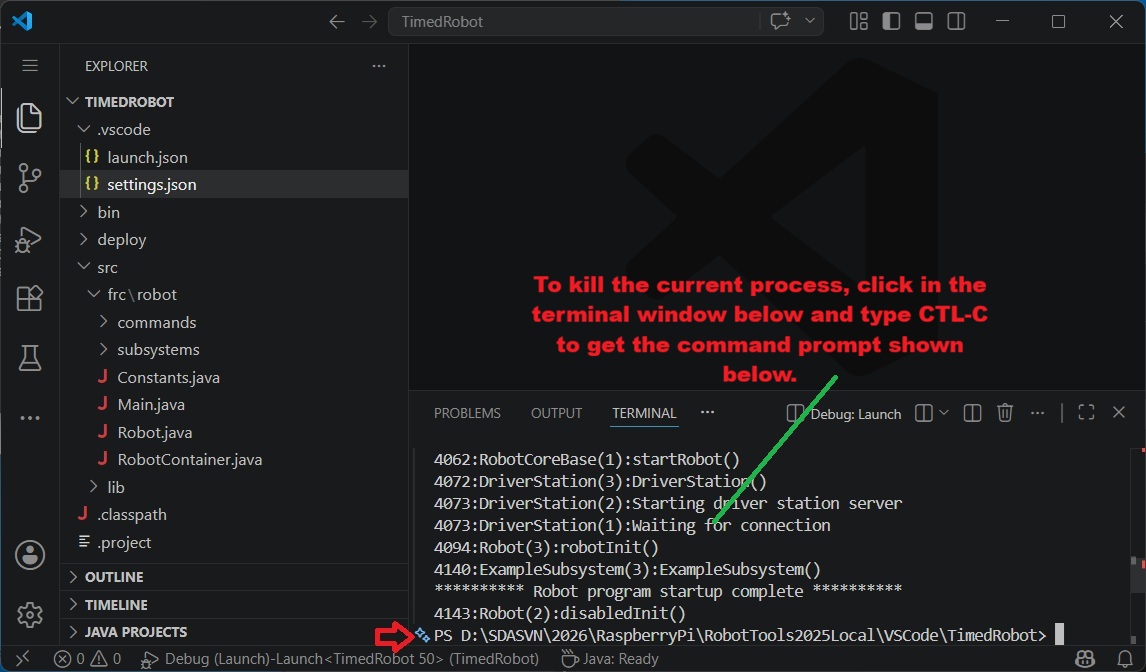
Otherwise, to kill the current process you need to click into the terminal window and type CTL-C. This should give you a command prompt as shown below. You many need to type CTL-C more than once. Once you see the command prompt, you can then run your program again following steps 3-5.
When you are through working with the robot, it is advisable to shut the Pi down gracefully rather than simply unplugging it. This can be done by clicking the Shutdown Pi on the Driver Station. Once you have done this wait about a minute for the Pi to shut down (you can tell when it is done when the green light on the Pi stops flashing). You can then safely unplug the Pi.